
Website Accessibility Checklist for Indian Businesses: WCAG, UX & Practical Fixes (2026 Guide)
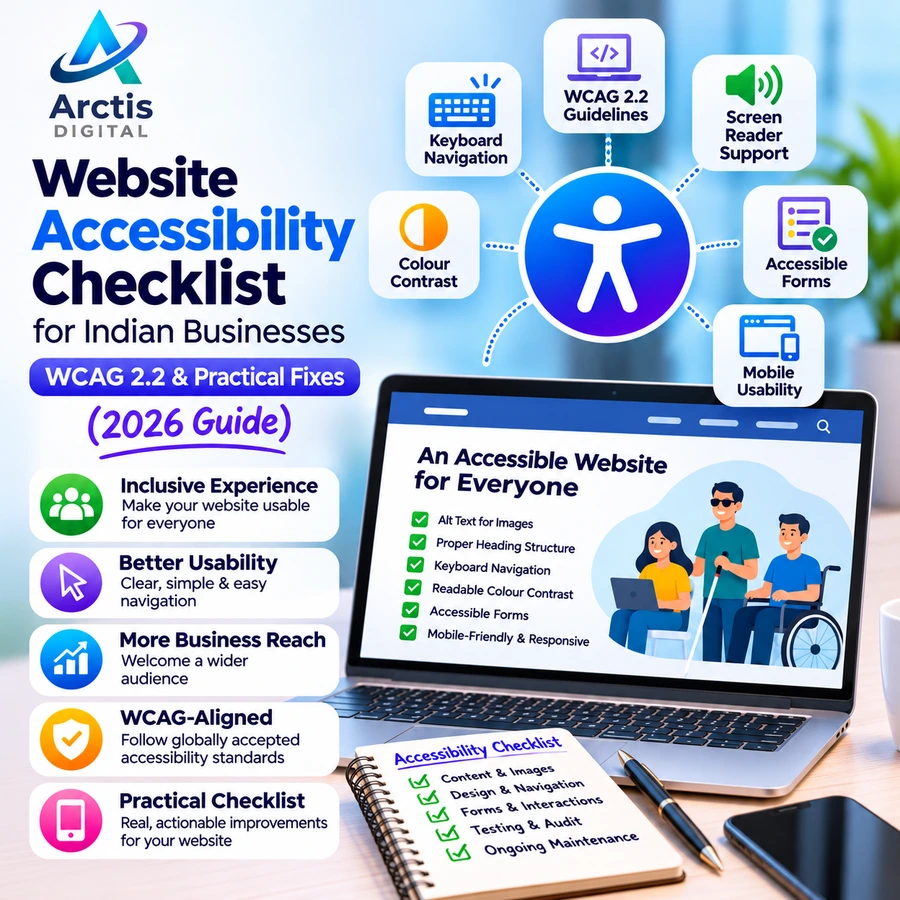
A business website may look modern, load quickly, and work perfectly with a mouse. But can someone navigate it using only a keyboard? Can a screen reader understand its navigation and forms? Can visitors with low vision read the text comfortably?
These are important questions when evaluating a website's accessibility.
Website accessibility means designing and developing websites so that people with different abilities can perceive, understand, navigate, and interact with digital content.
For businesses, accessibility is not just about adding a few visual adjustments. It involves the complete website experience, including navigation, typography, images, forms, buttons, documents, and interactive features.
This website accessibility checklist for Indian businesses explains the fundamentals of web accessibility, introduces WCAG 2.2, and provides practical steps to identify and fix common accessibility problems.
Whether you operate a small business website, an e-commerce store, or a professional services website, these improvements can help make your digital presence more inclusive and usable.
1. What Is Website Accessibility?
Website accessibility refers to designing and developing websites that people with disabilities can use effectively.
A person may interact with a website in different ways depending on their abilities and assistive technology.
For example:
- A person with visual impairment may use a screen reader to understand website content.
- A person with limited motor control may navigate using a keyboard instead of a mouse.
- A person with low vision may increase text size or use high-contrast settings.
- A person with hearing impairment may need captions for video content.
- A person with cognitive or learning disabilities may benefit from clear instructions and predictable navigation.
An inaccessible website can create unnecessary barriers for these visitors.
Consider a simple example: a website has a beautiful navigation menu, but it only opens when someone moves a mouse over it.
A keyboard user may not be able to access the menu at all.
The design may look correct, but the functionality is not available to everyone.
That is why accessibility needs to be considered during design, development, content creation, and testing.
2. Why Is Website Accessibility Important for Indian Businesses?
Accessibility is often treated as something that only large organisations or government websites need to consider.
That is a limited view.
Any business that provides information, services, products, or customer support through a website can benefit from making its digital experience more accessible.
Reach More People
An accessible website can be easier to use for visitors with different visual, hearing, motor, and cognitive needs.
This can help businesses avoid excluding potential customers because of unnecessary design barriers.
Improve User Experience
Features such as clear navigation, readable typography, descriptive buttons, and understandable forms are useful to many visitors, not only people with disabilities.
Make Website Navigation More Predictable
Consistent menus, properly structured headings, visible focus indicators, and clear instructions help visitors understand how to use the website.
Support Better Content Structure
Semantic HTML and descriptive page elements help assistive technologies interpret website content more accurately.
Reduce Avoidable Usability Problems
An accessible form is less likely to confuse visitors. A properly labelled button is easier to understand. A readable page is easier to navigate.
Accessibility improvements can therefore support the overall quality of a website.
However, accessibility should not be treated as a guaranteed Google ranking factor. It is primarily about making websites usable and inclusive. Good technical and content practices may support broader website quality, but accessibility alone does not guarantee higher search rankings.
3. What Are WCAG Guidelines?
WCAG stands for Web Content Accessibility Guidelines.
These guidelines are developed by the World Wide Web Consortium (W3C) through its Web Accessibility Initiative.
WCAG provides internationally recognised recommendations and testable success criteria for making web content more accessible.
The current WCAG 2 family includes WCAG 2.0, 2.1, and 2.2.
For new accessibility work, WCAG 2.2 is a useful target because it builds on the earlier versions and introduces additional requirements.
WCAG is organised around four fundamental principles, commonly known as POUR.
1. Perceivable
Website information and user interface components must be presented in ways users can perceive.
Examples:
- Provide meaningful alternative text for informative images.
- Add captions to relevant video content.
- Use sufficient text contrast.
- Avoid communicating important information through colour alone.
2. Operable
Visitors must be able to operate and navigate website functionality.
Examples:
- Make interactive features accessible through a keyboard.
- Provide visible keyboard focus.
- Avoid interactions that require only precise mouse movements.
- Make navigation and controls usable.
3. Understandable
Website information and functionality should be understandable and predictable.
Examples:
- Use clear language.
- Provide descriptive form labels.
- Explain validation errors.
- Keep navigation consistent.
- Avoid unexpected changes when visitors interact with controls.
4. Robust
Website content should work with a range of browsers, assistive technologies, and user agents.
Examples:
- Use semantic HTML.
- Give interactive components appropriate accessible names and roles.
- Maintain valid and predictable page structures.
- Test important features with assistive technologies.
These four principles provide a useful foundation for planning accessibility improvements.
4. Website Accessibility Checklist: 12 Important Areas to Review
Use the following checklist to identify common accessibility issues on your business website.
1. Add Meaningful Alternative Text to Images
Images can communicate important information, but visitors using screen readers may not be able to interpret them visually.
Alternative text, commonly called alt text, provides a text equivalent for meaningful images.
For example:
Poor alt text:
"image123.jpg"
Better alt text:
"Blue and white business website dashboard showing monthly sales performance."
Write alt text based on the purpose and information conveyed by the image.
For purely decorative images, an empty alt attribute may be appropriate so assistive technologies can ignore them.
Avoid adding unnecessary keyword phrases to alt text. Its purpose is to communicate image meaning, not to manipulate search rankings.
2. Maintain Sufficient Colour Contrast
Text must be readable against its background.
A common accessibility problem occurs when websites use light grey text on white backgrounds or place text over complex images.
WCAG 2.2 Level AA includes these minimum contrast requirements:
- Normal text: 4.5:1.
- Large text: 3:1.
- Relevant user interface components and graphical objects: 3:1 against adjacent colours.
Large text generally means at least 18-point regular text or 14-point bold text.
For example, a pale grey paragraph on a white background may look minimal, but it can be difficult for visitors with low vision to read.
Check your actual foreground and background colour combinations instead of judging contrast only by appearance.
Useful tool: WebAIM Contrast Checker.
3. Make the Website Fully Keyboard Accessible
Not every visitor uses a mouse.
Some people navigate websites through keyboards, switches, or other assistive input devices.
Test whether users can:
- Move through links using Tab.
- Move backwards using Shift + Tab.
- Activate buttons using the keyboard.
- Operate dropdown menus.
- Access navigation menus.
- Close dialogs and popups.
- Reach all important interactive elements.
A website should not trap keyboard users inside an element or make essential functionality available only through mouse interactions.
4. Provide Visible Keyboard Focus Indicators
When someone navigates using a keyboard, the currently focused element should be visually identifiable.
For example, when a visitor presses Tab, the selected navigation link or button should display a visible focus outline.
Do not remove browser focus outlines without providing a suitable alternative.
Also check whether sticky headers, banners, and other fixed elements completely hide the focused control.
WCAG 2.2 includes additional requirements for focus visibility and focus not being obscured.
5. Use Proper Heading Structure
Headings help visitors understand the organisation of a page.
They also help screen reader users navigate between sections.
Use a logical hierarchy:
- H1 for the main page heading.
- H2 for major sections.
- H3 for subsections.
- H4 where further hierarchy is necessary.
For example:
H1: Website Development Services
H2: Business Website Development
H3: Features of a Business Website
Do not select heading levels only because of their visual size.
Use CSS to style headings while maintaining a meaningful document structure.
6. Make Website Forms Accessible
Forms are important for businesses because they collect enquiries, registrations, bookings, and customer information.
An inaccessible form can prevent visitors from completing an important action.
Check that:
- Every field has a clear label.
- Required fields are identified.
- Instructions are easy to understand.
- Errors are explained in text.
- Error messages are associated with the relevant fields.
- Visitors can navigate the form using a keyboard.
- Important success and error messages are communicated to assistive technologies.
For example, do not rely only on a red border to indicate an invalid email address.
Display a clear message such as:
"Please enter a valid email address."
For more guidance, read our article on creating a high-converting website quote request form.
7. Use Descriptive Link and Button Text
Avoid using unclear labels such as:
- Click here.
- Read more.
- Submit.
- View.
These labels may not communicate the purpose of an action clearly, especially when users navigate through a list of links or buttons.
Use descriptive labels where possible:
- View Website Development Services.
- Download the Product Catalogue.
- Request a Website Development Quote.
- Submit Your Enquiry.
The purpose of an interactive element should be understandable from its label or its accessible context.
8. Add Captions and Alternatives to Multimedia
Videos and audio content can contain important information.
Visitors who cannot hear audio may need captions.
Consider providing:
- Captions for prerecorded videos containing speech.
- Text transcripts for relevant audio content.
- Audio descriptions where important visual information is not otherwise conveyed.
- Controls for media playback.
Avoid autoplaying videos with sound.
If background media is used, provide appropriate controls and ensure it does not interfere with the visitor's ability to use the website.
9. Make the Website Responsive and Zoom-Friendly
Accessibility is not limited to desktop users.
Visitors may use mobile devices, browser zoom, screen magnification, or different display orientations.
Check that:
- Text remains readable when enlarged.
- Content does not disappear when zoomed.
- Buttons and controls remain usable.
- Navigation does not become inaccessible on smaller screens.
- Important information is not hidden by fixed elements.
- Horizontal scrolling is avoided for ordinary content where possible.
WCAG includes a reflow requirement that addresses presentation at narrow viewport widths, with exceptions for content that genuinely requires two-dimensional layout.
10. Use Accessible Navigation and Menus
Navigation should remain consistent and predictable throughout the website.
Check that:
- Menus have clear labels.
- Dropdowns can be opened and operated using a keyboard.
- The current page or navigation state is communicated appropriately.
- Visitors can identify where they are.
- Navigation controls have accessible names.
- Mobile navigation is usable without precise pointer movements.
Do not build complex menus that depend entirely on hover interactions.
11. Make Buttons and Interactive Elements Easy to Use
Small icons and tightly packed controls can be difficult for visitors with limited motor control.
WCAG 2.2 Level AA includes a minimum target-size criterion of 24 by 24 CSS pixels, subject to specific exceptions.
For practical mobile usability, larger touch targets and sufficient spacing are often preferable.
Review:
- Icon-only buttons.
- Mobile navigation controls.
- Close buttons.
- Form submission buttons.
- Pagination links.
- Dropdown controls.
Ensure that icon-only controls have accessible names that explain their purpose.
12. Check PDFs and Downloadable Documents
Business websites often provide brochures, catalogues, reports, application forms, and other documents.
A scanned PDF that contains only images of text may not be usable with screen readers.
Where possible:
- Provide properly structured PDFs.
- Use selectable text.
- Add document titles and language information.
- Structure headings and lists.
- Provide meaningful links.
- Offer an accessible HTML alternative for important information.
Accessibility should include downloadable content, not only the website's visible pages.
5. How to Test Website Accessibility
An accessibility checklist is useful, but it should be combined with actual testing.
There is no single automated tool that can identify every accessibility problem.
Use a combination of automated checks, manual testing, and assistive technology.
Step 1: Run an Automated Accessibility Check
You can start with tools that identify common issues such as:
- Missing image alternatives.
- Insufficient colour contrast.
- Some incorrectly labelled controls.
- Certain structural problems.
- Some accessibility-related markup errors.
Useful tools include:
WAVE
WAVE Web Accessibility Evaluation Tool
WAVE identifies many accessibility issues and provides visual feedback on page elements.
axe DevTools
This tool helps developers identify accessibility problems during development and testing.
Google Lighthouse
Lighthouse includes accessibility audits as part of its website analysis.
You can run it through Chrome DevTools.
Remember that an automated score is not proof of full WCAG conformance.
Step 2: Test Navigation Without a Mouse
Open your website and use only your keyboard.
Try the following:
- Press Tab to move through interactive elements.
- Use Shift + Tab to move backwards.
- Press Enter or Space to activate appropriate controls.
- Navigate dropdown menus.
- Open and close dialogs.
- Check whether the focus indicator remains visible.
If you cannot complete an important website task without a mouse, investigate the cause.
Step 3: Test With a Screen Reader
Screen readers convert website information into speech or other accessible output.
Common options include:
- NVDA for Windows.
- VoiceOver for Apple devices.
- TalkBack for Android.
Try navigating your website using a screen reader.
Check whether:
- Page headings are announced correctly.
- Images have meaningful alternatives.
- Links have understandable names.
- Forms have labels.
- Buttons communicate their purpose.
- Error messages are announced.
- Navigation landmarks are available.
A page can look correct visually and still be confusing when accessed through a screen reader.
Step 4: Check Colour Contrast
Test text and interface colours using a contrast checker.
Pay particular attention to:
- Body text.
- Navigation links.
- Button labels.
- Placeholder text.
- Form error messages.
- Text placed over images.
- Disabled and selected interface states.
Do not assume that a colour combination is accessible because it looks readable on your monitor.
Step 5: Test Mobile Accessibility
Open your website on a mobile device.
Check whether:
- Menus can be operated easily.
- Buttons are sufficiently large.
- Text can be enlarged.
- Forms are easy to complete.
- Important controls are not hidden.
- The page works in the visitor's preferred orientation.
Test actual interactions rather than relying only on a desktop browser's responsive preview.
6. WCAG 2.2: What Has Changed?
WCAG 2.2 builds on WCAG 2.1 and adds additional success criteria, particularly around interaction and usability.
Some notable additions include:
Focus Not Obscured (Minimum)
A component receiving keyboard focus must not be entirely hidden by content created by the author.
Dragging Movements
Functionality that requires dragging should have an alternative single-pointer method unless dragging is essential.
Target Size (Minimum)
Pointer targets generally need to be at least 24 by 24 CSS pixels, subject to the criterion's exceptions.
Consistent Help
Help mechanisms that are repeated across pages should appear consistently, subject to the criterion's conditions.
Redundant Entry
Information already entered by a user should not need to be entered again in the same process unless an exception applies.
Accessible Authentication
Authentication processes should support users who may have difficulty completing certain cognitive function tests, subject to the criterion's conditions.
These changes are particularly relevant when designing modern websites with dropdowns, sticky headers, login forms, interactive dashboards, and multi-step processes.
For the full technical specification, refer to W3C's WCAG 2.2 documentation.
7. Website Accessibility in India: Standards and Legal Context
Businesses operating in India should understand the country's accessibility framework rather than assuming that one international checklist automatically defines every legal obligation.
Rights of Persons with Disabilities Act, 2016
The Rights of Persons with Disabilities Act, 2016 provides India's statutory framework concerning the rights of persons with disabilities.
It includes provisions relating to accessibility and standards for information and communication technology.
The applicability of particular requirements depends on the relevant legal provisions, rules, standards, and the type of organisation or service involved.
Businesses should obtain appropriate legal advice when determining their specific obligations.
Guidelines for Indian Government Websites and Apps (GIGW 3.0)
India's GIGW 3.0 provides guidance for government websites and applications.
It covers areas such as:
- Accessibility.
- Usability.
- Website quality.
- Cybersecurity.
- Content structure.
- Mobile applications.
- Lifecycle management.
GIGW 3.0 incorporates WCAG 2.1 Level AA accessibility guidance for government websites and applications.
An important distinction: GIGW is specifically intended for Indian government websites and applications. It should not be described as a blanket certification or automatic legal requirement for every private business website.
However, its practical accessibility recommendations can be useful references for private organisations as well.
Should Private Businesses Follow WCAG?
WCAG is a widely recognised technical accessibility standard.
Even where a particular WCAG conformance level is not directly imposed on a business by a specific legal provision, using WCAG as a development target can help improve the accessibility of its digital services.
For a new website, planning accessibility from the beginning is generally more efficient than trying to correct every issue after launch.
8. Common Website Accessibility Mistakes to Avoid
Some accessibility problems appear repeatedly across business websites.
Avoid these mistakes:
1. Treating alt text as an SEO keyword field
Alt text should explain meaningful image content or purpose, not contain unrelated keywords.
2. Removing focus outlines
Removing keyboard focus indicators without providing a visible replacement makes navigation harder.
3. Using colour as the only indicator
For example, showing an error only through a red border can exclude visitors who cannot distinguish that colour.
4. Building dropdowns that work only on hover
Interactive menus should also support keyboard operation and appropriate focus behaviour.
5. Using placeholder text instead of proper labels
Placeholder text disappears when someone starts typing and should not replace a visible field label.
6. Assuming an accessibility plugin fixes everything
Accessibility overlays and automated tools cannot automatically correct every underlying design, content, and interaction problem.
7. Ignoring downloadable documents
Inaccessible PDFs can create barriers even when the main website is reasonably accessible.
8. Testing only on desktop
Accessibility must be considered across different devices, browsers, display sizes, and input methods.
9. Treating a perfect automated score as certification
Automated checks identify only some types of problems. Manual evaluation is still necessary.
9. Website Accessibility Checklist Before Launch
Use this checklist when designing, rebuilding, or maintaining a business website.
Content and Images
- Meaningful images have appropriate alternative text.
- Decorative images can be ignored by assistive technology.
- Videos have appropriate captions.
- Important audio information has an alternative.
- Headings follow a logical structure.
- Link text communicates its purpose.
Design and Navigation
- Text meets the applicable contrast requirements.
- Keyboard focus is visible.
- Navigation works without a mouse.
- Menus are accessible using a keyboard.
- Interactive controls have accessible names.
- Content remains usable when enlarged.
- Mobile navigation works properly.
- Important controls are sufficiently sized and spaced.
Forms and Interactions
- Form fields have visible labels.
- Required fields are identified.
- Validation errors are understandable.
- Error messages are associated with relevant fields.
- Success messages are communicated appropriately.
- Interactive elements can be operated using a keyboard.
Testing and Maintenance
- Automated accessibility testing has been completed.
- Manual keyboard testing has been performed.
- Screen reader testing has been considered.
- Mobile accessibility has been checked.
- Important PDFs and downloadable documents have been reviewed.
- Accessibility issues are tracked and fixed.
- Accessibility is included in future website updates.
Frequently Asked Questions
What is website accessibility?
Website accessibility means designing and developing websites so that people with different abilities can access information, navigate pages, and use website functionality.
What is WCAG 2.2?
WCAG 2.2 is the Web Content Accessibility Guidelines version 2.2, developed by W3C. It provides testable success criteria for making web content more accessible.
Is website accessibility mandatory in India?
India has an accessibility framework that includes the Rights of Persons with Disabilities Act, 2016, related standards, and guidance such as GIGW 3.0 for government websites and applications. The specific legal requirements depend on the organisation and applicable provisions. Businesses should seek legal advice rather than assume that every government guideline automatically applies to every private website.
Does website accessibility improve SEO?
Accessibility should not be treated as a guaranteed Google ranking factor. However, accessible development often involves useful practices such as semantic HTML, descriptive links, structured headings, and meaningful alternative text. These can also support content understanding and usability.
How can I check whether my website is accessible?
Start with automated tools such as WAVE, axe DevTools, and Lighthouse. Then perform manual keyboard testing, check colour contrast, and test important pages using screen readers.
What is the difference between WCAG A, AA, and AAA?
WCAG has three conformance levels. Level A represents the basic level, Level AA includes additional requirements, and Level AAA includes more stringent criteria. A conformance claim must satisfy all applicable success criteria at the selected level; a high automated score alone does not establish conformance.
Can WordPress websites be made accessible?
Yes. WordPress websites can be improved through accessible themes, semantic HTML, properly labelled forms, suitable colour contrast, keyboard-accessible navigation, and accessible content. However, using an accessibility-focused theme or plugin does not automatically make the complete website conform to WCAG.
Is an accessibility plugin enough?
No. Plugins may help identify or address certain issues, but they cannot reliably correct every problem involving content structure, keyboard behaviour, forms, custom components, and assistive technology compatibility.
Final Thoughts
Website accessibility should be part of the website development process, not an afterthought.
A modern website should not only look professional. Visitors should also be able to understand its content, navigate its pages, complete forms, and use important features through different devices and interaction methods.
Start with the fundamentals: meaningful alternative text, readable colour contrast, keyboard navigation, clear form labels, logical headings, and accessible interactive controls.
Then test the website using automated tools, manual checks, and assistive technologies.
At Arctis Digital, we provide website development, UI/UX design, custom software solutions, and website maintenance services. We believe that a professional digital experience should focus on usability, performance, and accessibility together.
If your business is planning a new website or wants to improve an existing digital experience, contact Arctis Digital to discuss your requirements.
Official References and Useful Resources
- W3C: Web Content Accessibility Guidelines (WCAG) 2.2
- W3C: WCAG 2 Overview
- W3C: WCAG 2 at a Glance
- Government of India: Guidelines for Indian Government Websites and Apps (GIGW)
- WAVE Web Accessibility Evaluation Tool
- WebAIM Contrast Checker
- W3C: Web Accessibility Evaluation Tools
Related Guides From Arctis Digital
- Core Web Vitals for Business Websites in India: LCP, INP & CLS Guide
- Website Maintenance Checklist for Small Businesses in India
- How to Increase Website Leads in 2026
- How to Create a High-Converting Website Quote Request Form
- Website Contact Form Not Sending Emails? Causes & Fixes
- How to Choose a Website Development Company in India