
Website Contact Form Not Sending Emails? Causes & Fixes for Business Websites (2026 Guide)
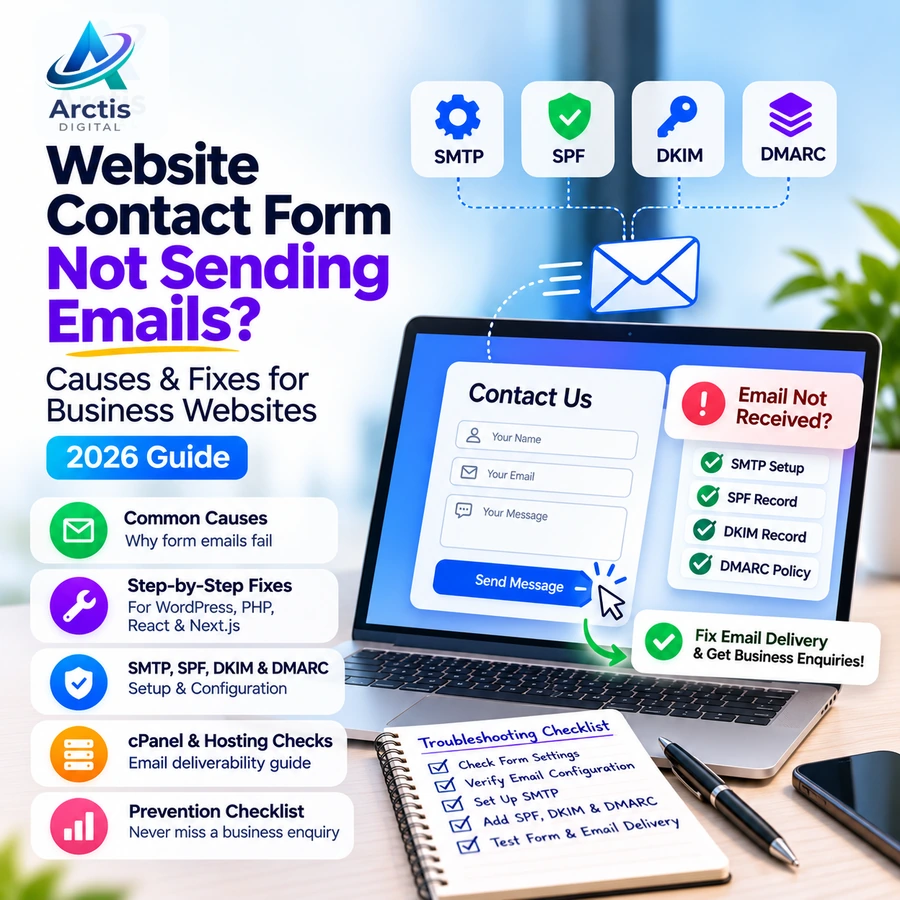
A website contact form is supposed to make it easier for potential customers to reach your business. But what happens when someone submits an enquiry, sees a success message, and your business never receives the email?
If your website contact form is not sending emails, the problem may not be the form itself. It could be an email delivery failure, incorrect SMTP configuration, DNS authentication issue, server restriction, or a problem in the website's backend.
For a business website, this is more than a technical inconvenience. A missed enquiry can mean a lost customer, an unanswered quotation request, or wasted advertising expenditure.
In this guide, we explain why website contact form emails fail, how to diagnose the issue, and how to fix it across WordPress, PHP, React, and Next.js websites.
Why Is Your Website Contact Form Not Sending Emails?
A contact form generally follows a sequence:
- A visitor enters their details and submits the form.
- The website receives the submitted information.
- The website's backend processes the submission.
- An email service or mail server attempts to send a notification.
- The recipient's email provider checks and processes the message.
- The message reaches the inbox, spam folder, or is rejected.
A problem at any stage can prevent the enquiry from reaching your business.
One important distinction: a successful form submission does not necessarily mean that the notification email was delivered.
The website may successfully process the form while the email fails later during delivery.
1. Common Reasons Website Contact Form Emails Are Not Received
Before changing your website or installing additional plugins, identify the likely cause.
Incorrect SMTP Configuration
SMTP (Simple Mail Transfer Protocol) is commonly used to send emails through an authenticated mail server.
If your website has incorrect SMTP credentials, an outdated password, an incorrect port, or an incompatible encryption setting, the email may fail to send.
Common configuration problems include:
- Incorrect SMTP hostname.
- Wrong username or password.
- Incorrect SMTP port.
- SSL/TLS configuration mismatch.
- Mailbox authentication failures.
- SMTP service restrictions imposed by the hosting provider.
Emails Are Being Marked as Spam
Sometimes the website sends the notification successfully, but the recipient's email provider classifies it as spam.
This can happen when the sending server is not properly authenticated or the email's sender identity does not match the domain's authorised sending configuration.
Check your spam or junk folder before assuming that the form is broken.
Missing or Incorrect SPF, DKIM, and DMARC Records
Email authentication records help receiving mail servers verify whether messages are authorised to represent your domain.
The three important mechanisms are:
SPF (Sender Policy Framework)
SPF identifies which mail servers are authorised to send emails on behalf of your domain.
DKIM (DomainKeys Identified Mail)
DKIM adds a digital signature that allows receiving servers to verify the message's authenticity and integrity.
DMARC (Domain-based Message Authentication, Reporting and Conformance)
DMARC tells receiving servers how to handle messages that fail the domain's authentication and alignment policy.
Incorrect or incomplete DNS configuration can contribute to contact-form email delivery problems.
Incorrect From and Reply-To Addresses
This is a common configuration mistake.
Suppose a visitor submits an enquiry using their Gmail address. Your website then attempts to send an email using that visitor's address as the sender.
Your server is now claiming to send an email from a domain it does not control.
This can cause authentication and delivery problems.
A safer configuration is:
- From:
website@yourdomain.com - Reply-To: The visitor's submitted email address.
This allows your website to send from an address belonging to your domain while still allowing you to reply to the customer.
Hosting Server Restrictions
Some hosting environments restrict outgoing email or impose limits to prevent spam.
Other possible issues include:
- Mail service disabled on the hosting account.
- Outgoing email limits reached.
- Poor sending IP reputation.
- Incorrect server configuration.
- Full mailbox storage.
- Temporary mail server failures.
Shared hosting does not automatically mean email will fail. However, the hosting provider's mail configuration, sending limits, and reputation can affect delivery.
Incorrect Form or Backend Configuration
Sometimes the issue is not related to email authentication.
The form may have:
- An incorrect recipient address.
- A broken API endpoint.
- Missing backend environment variables.
- Invalid form validation.
- An incorrectly configured email notification.
- A backend exception that prevents the email function from running.
For custom websites, the backend logs are often the best place to start investigating.
2. How to Diagnose a Website Contact Form Email Problem
Do not immediately reinstall the form plugin or rebuild the website.
Follow this troubleshooting sequence first.
Step 1: Submit a Test Enquiry
Open your website and submit a test enquiry using an email address you can access.
Enter realistic test information and submit the form once.
Then check:
- Did the website display a success message?
- Did the form submission appear in the website's database or dashboard?
- Did the notification reach the intended inbox?
- Did it land in spam or junk?
- Did the visitor receive an acknowledgement email, if configured?
If the submission is stored but the email is missing, the problem is likely further along the email delivery process.
Step 2: Verify the Recipient Email Address
Check the email address configured to receive website enquiries.
Look for:
- Spelling mistakes.
- Old or inactive email accounts.
- Incorrect recipient configuration.
- Mailbox storage limitations.
- Email forwarding issues.
If multiple team members receive enquiries, test each recipient separately.
Step 3: Check Email Logs
Email logs can help determine whether your website attempted to send the notification.
Depending on the platform, check:
- WordPress email logging plugins.
- SMTP provider activity logs.
- Backend application logs.
- Hosting email logs.
- Mail server delivery reports.
If the application never generated an email, investigate the form or backend.
If the application generated the email but delivery failed, investigate the SMTP service, authentication, and recipient server response.
Step 4: Check SPF, DKIM, and DMARC
Review the DNS records associated with your sending domain.
If you use cPanel, open:
cPanel → Email → Email Deliverability
Select your domain and review the available SPF and DKIM status.
If cPanel provides a repair recommendation, review it before applying the change. Your authoritative DNS provider may be different from your hosting provider, in which case the suggested records may need to be added at the actual DNS provider.
Do not blindly create duplicate SPF records or replace existing email-provider records.
Step 5: Test With Another Email Address
Submit another test enquiry using a different recipient mailbox.
For example:
- Gmail.
- Outlook.
- A business email account.
If messages reach one provider but not another, the issue may involve recipient-side filtering or authentication requirements rather than the form itself.
3. How to Fix Contact Form Emails in WordPress
WordPress websites commonly use contact form plugins such as Contact Form 7, WPForms, and other form builders.
However, installing a form plugin does not automatically guarantee reliable email delivery.
Follow these steps.
Step 1: Check Your Form Notification Settings
Open your form plugin's notification settings.
Verify:
- The recipient email address is correct.
- The subject is configured properly.
- The message includes the submitted form fields.
- The sender address belongs to your own domain.
- The visitor's email is configured as Reply-To.
Avoid using the visitor's email address as the From address.
Step 2: Configure SMTP
WordPress can hand email to the server through its default mail mechanism. For more controlled delivery, configure an authenticated SMTP connection or a supported email API.
Common options include:
- WP Mail SMTP.
- FluentSMTP.
- Your business email provider's SMTP service.
- A transactional email provider.
The exact configuration depends on the email service you select.
You will generally need:
- SMTP hostname or provider endpoint.
- SMTP username.
- SMTP password or application credential.
- Port.
- Encryption method.
Store credentials securely and do not expose them in publicly accessible website code.
Step 3: Send a Test Email
After configuring SMTP:
- Open your SMTP plugin's email testing feature.
- Enter a mailbox you can access.
- Send a test message.
- Check the inbox and spam folder.
- Review the plugin or provider logs if delivery fails.
A successful SMTP test is useful, but you should also submit the actual contact form. The form's notification settings may still be incorrect.
Step 4: Test the Actual Contact Form
Submit another enquiry through the live form.
Verify that:
- The submission is recorded.
- The notification is delivered.
- The sender and Reply-To addresses are correct.
- The email contains the expected information.
- The visitor receives an acknowledgement, if configured.
Do not consider the issue resolved until the actual form has been tested.
4. How to Fix Contact Form Emails on cPanel Hosting
If your business website uses cPanel hosting, email-related configuration can be checked directly from the control panel.
Step 1: Check Whether Your Email Account Exists
Log in to cPanel.
Navigate to:
Email → Email Accounts
Check whether the mailbox configured to receive enquiries exists and is active.
If required, create a mailbox such as:
info@yourdomain.comsales@yourdomain.comenquiry@yourdomain.com
Use a strong password and ensure the mailbox has sufficient storage.
Step 2: Open Email Deliverability
Navigate to:
Email → Email Deliverability
Select your domain and inspect the SPF and DKIM records.
If cPanel identifies an issue, review the suggested configuration.
Remember that cPanel may not control your authoritative DNS. If your domain's nameservers point elsewhere, update the records at the provider managing your DNS.
Step 3: Check Email Routing
If your website uses cPanel email, verify that the domain's email routing configuration matches the actual mail setup.
For example:
- Local Mail Exchanger when the server handles the domain's mail.
- Remote Mail Exchanger when another provider handles the mail.
The correct setting depends on where your mailboxes are hosted. An incorrect setting can prevent expected mail delivery.
Step 4: Verify the SMTP Details
Use the mail client configuration details provided by your hosting provider.
Check the hostname, port, encryption, username, and authentication requirements.
Do not assume that every hosting provider uses the same SMTP configuration.
Step 5: Test the Mailbox Independently
Log in to webmail and send a test email.
If normal mailbox sending and receiving also fail, investigate the email hosting configuration before changing the website form.
If normal email works but form notifications fail, investigate the website's SMTP or application configuration.
5. What If Your Website Uses React, Next.js, or Custom PHP?
Not every business website runs on WordPress.
Custom websites built with React, Next.js, Node.js, PHP, or other backend technologies require a different troubleshooting approach.
React Websites
React is primarily a frontend library.
A React form generally sends submitted information to a backend API or a form-processing service.
The backend is responsible for securely processing the enquiry and sending the notification.
Check:
- Whether the form API endpoint is correct.
- Whether the request reaches the backend.
- Whether the backend returns an error.
- Whether the email service credentials are configured.
- Whether the backend logs show a mail delivery failure.
Do not place SMTP passwords or private email API keys directly inside frontend React code.
Next.js Websites
In a Next.js application, email sending can be handled through server-side functionality such as Route Handlers or other backend services.
Check:
- Whether the relevant API route is working.
- Whether environment variables are available in the deployed environment.
- Whether the email provider accepts the request.
- Whether the backend handles failed email requests.
- Whether deployment logs show errors.
A form working locally does not prove that it will work after deployment. Production environment variables and provider restrictions may differ.
Custom PHP Websites
For PHP websites, investigate the server-side mail configuration and the application's email-sending logic.
Check:
- Whether the form reaches the PHP processing script.
- Whether server-side validation succeeds.
- Whether the email function returns an error.
- Whether the hosting provider permits the selected mail transport.
- Whether SMTP authentication is configured correctly.
For any custom application, log delivery failures and provide a useful error-handling mechanism rather than silently treating every submission as successful.
6. SMTP vs Email API: Which Should Your Website Use?
SMTP and email APIs are two common approaches to sending website notifications.
SMTP is often convenient when your business already has a supported mailbox or mail service.
An email API allows the backend to communicate directly with a transactional email provider through an authenticated API request.
Consider these factors when choosing:
- Your website's technology stack.
- Expected email volume.
- Provider sending limits.
- Delivery logs and failure reporting.
- Integration complexity.
- Cost and support requirements.
For a small business website with occasional enquiries, a properly configured SMTP service may be sufficient.
For a high-volume application, booking platform, or customer-facing portal, a transactional email service may provide more suitable delivery monitoring and integration options.
The right choice depends on your actual requirements, not simply on which option is more popular.
7. How to Prevent Website Enquiries From Getting Lost
Fixing email delivery is important, but relying on a single email notification creates another risk.
A business should have a backup way to retain and track enquiries.
Consider these practices:
Store form submissions
Save enquiry details in a database or a reliable form-entry system. This provides a record even if an email notification fails.
Use a secondary notification channel
Depending on your workflow, send an alert through an approved messaging integration or CRM.
Add proper error logging
Record failed email attempts and relevant provider responses so technical issues can be investigated.
Test forms regularly
Submit test enquiries periodically, especially after website updates, hosting changes, or DNS modifications.
Monitor mailbox storage
A full mailbox can prevent new messages from being received.
Protect form endpoints
Use appropriate validation, spam protection, rate limiting, and secure handling of submitted information.
Keep website software updated
Maintain your form plugins, backend dependencies, and server configuration.
A reliable contact form should not only collect information. It should make sure the business can access and act on that information.
8. Website Contact Form Troubleshooting Checklist
Use this checklist when a customer reports that their enquiry has not reached your business.
Form and application checks
- Submit a test enquiry.
- Confirm that the form submission is stored.
- Verify the recipient email address.
- Check form validation and backend responses.
- Review application and email logs.
Email configuration checks
- Verify SMTP hostname and port.
- Check SMTP authentication credentials.
- Confirm the encryption settings.
- Use a sender address belonging to your domain.
- Configure the visitor's address as Reply-To.
- Check SPF and DKIM.
- Review the DMARC configuration.
- Check mailbox storage and email routing.
Final verification
- Test delivery to Gmail.
- Test delivery to another email provider.
- Check spam and junk folders.
- Confirm the actual contact form works.
- Verify that failed notifications are logged.
- Ensure enquiry data has a backup storage mechanism.
Frequently Asked Questions
Why does my contact form say message sent but I do not receive an email?
The success message may only confirm that the website accepted the submission. The notification email could still fail because of SMTP configuration, server restrictions, authentication problems, or recipient-side filtering.
Does a website contact form need SMTP?
Not every implementation uses SMTP. A website may use an email API or another supported delivery mechanism. However, the application needs a reliable and properly authenticated way to send notifications.
Can cPanel hosting send website contact form emails?
Yes, if the hosting account and mail service support outgoing email and are configured correctly. Check the provider's sending limits, SMTP settings, and email authentication configuration.
Why do WordPress contact form emails go to spam?
Common reasons include incorrect sender configuration, missing or incorrect authentication records, and problems with the sending service's reputation. Use a properly authenticated email service and ensure the From address belongs to your domain.
Do SPF, DKIM, and DMARC guarantee email delivery?
No. They help receiving systems authenticate messages, but delivery also depends on the sending service, domain and IP reputation, message characteristics, recipient policies, and other factors.
Should I use Gmail or a business email address for website enquiries?
A business email address using your own domain generally provides a more professional setup. You can use a supported mailbox provider or transactional email service, provided the website's sending configuration is correct.
How often should I test my website contact form?
Test it after significant website updates, email or DNS changes, hosting migrations, and changes to form integrations. A recurring test is also useful for business-critical enquiry forms.
Final Thoughts
A contact form is one of the most important communication points on a business website. If its notifications fail, potential customers may submit enquiries without receiving a response.
When your website contact form is not sending emails, investigate the complete delivery process instead of assuming that the form itself is broken.
Check the form submission, backend processing, SMTP or email API configuration, DNS authentication, and recipient mailbox. Then introduce backup enquiry storage and regular testing to reduce the risk of missed leads.
At Arctis Digital, we provide website development, backend and API development, hosting management, and website maintenance solutions to help businesses maintain reliable digital operations.
If your website forms are failing, your enquiry notifications are unreliable, or your business website needs technical improvements, contact Arctis Digital to discuss your requirements.
Official References
- Google Workspace: Troubleshoot Gmail not getting contact form messages
- cPanel: Email Deliverability
- cPanel: Create and connect to an email account